
Login to Oracle Console Oracle Console
Note: You must be in your home region to do the rename.
Plan ahead and inform Team & Stack holders that change implementation initiated.
Change the name during off-hours to reduce impact on users in your tenancy.
Keep the team updated post changes.
Click on Your Tenancy as shown below:

Click on Rename Tenancy Tab

New POP Up window will be opened and there you need to change the Name based on you requirement as shown below:
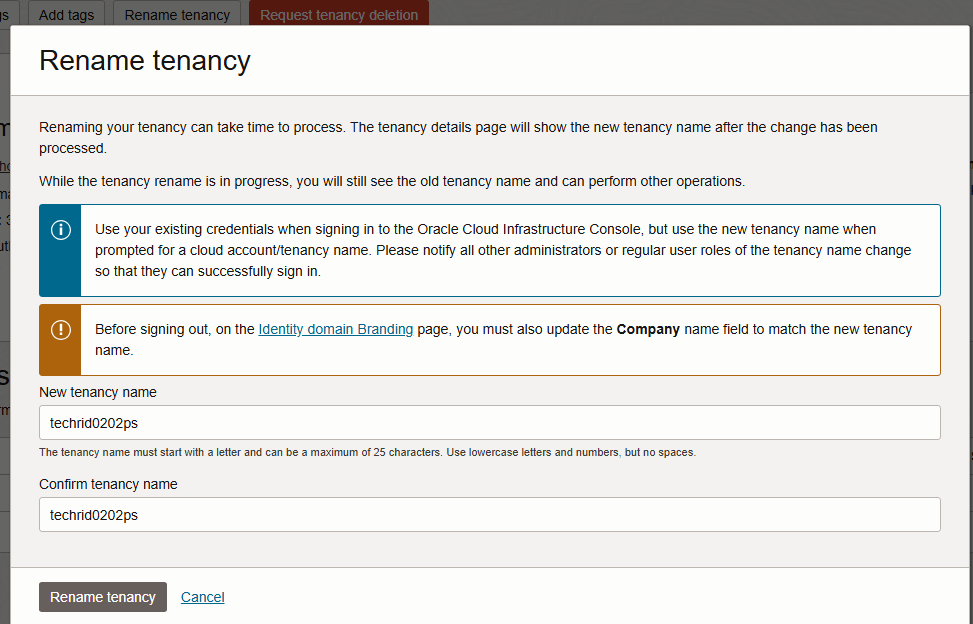
Post changing please click on Rename tenancy.
You will be notified with information as shown below:

Also we can see the work request status as In progress

Don’t be panic will take some time to change for us it took an hour.

Logout and re-login to see the change.

Note: If you’re renaming a child tenancy in your organization, ensure you’re signed in to the child tenancy, not the parent.
After Tenancy Rename
The next time signing in to the Console, you must use the new tenancy name when prompted for a cloud account or tenancy name.
After the name has changed, you can’t use the old name to sign in to the Console. Existing sessions keep working, but new sessions need to use the new name. You also can’t change an account name back to its old name.
When you rename the tenancy, all references to the cloud account name and the tenancy name are updated, including the following names:
Amazon S3 Compatibility API Designated Compartment
SWIFT API Designated Compartment
Reference: https://docs.oracle.com/en-us/iaas/Content/General/Concepts/renamecloudaccount.htm
Thanks,
Praveen Kumar.
 Praveen Kumar
 TechRid